Chat is the fastest way to get answers from a large set of sources without reading them end-to-end.
How it works
When you ask a question, Paper:
- Searches across every source attached to the page.
- Pulls the most relevant passages (or the full text when it fits in the model's context).
- Generates an answer grounded in those passages.
- Returns citations linking back to the original passage or timestamp.
Click a citation and you jump to the source - the PDF page, the video timestamp, or the linked note.
Open chat
- Open a page.
- In the AI Features panel on the right, click the Chat tile.
- Type your question and hit enter.
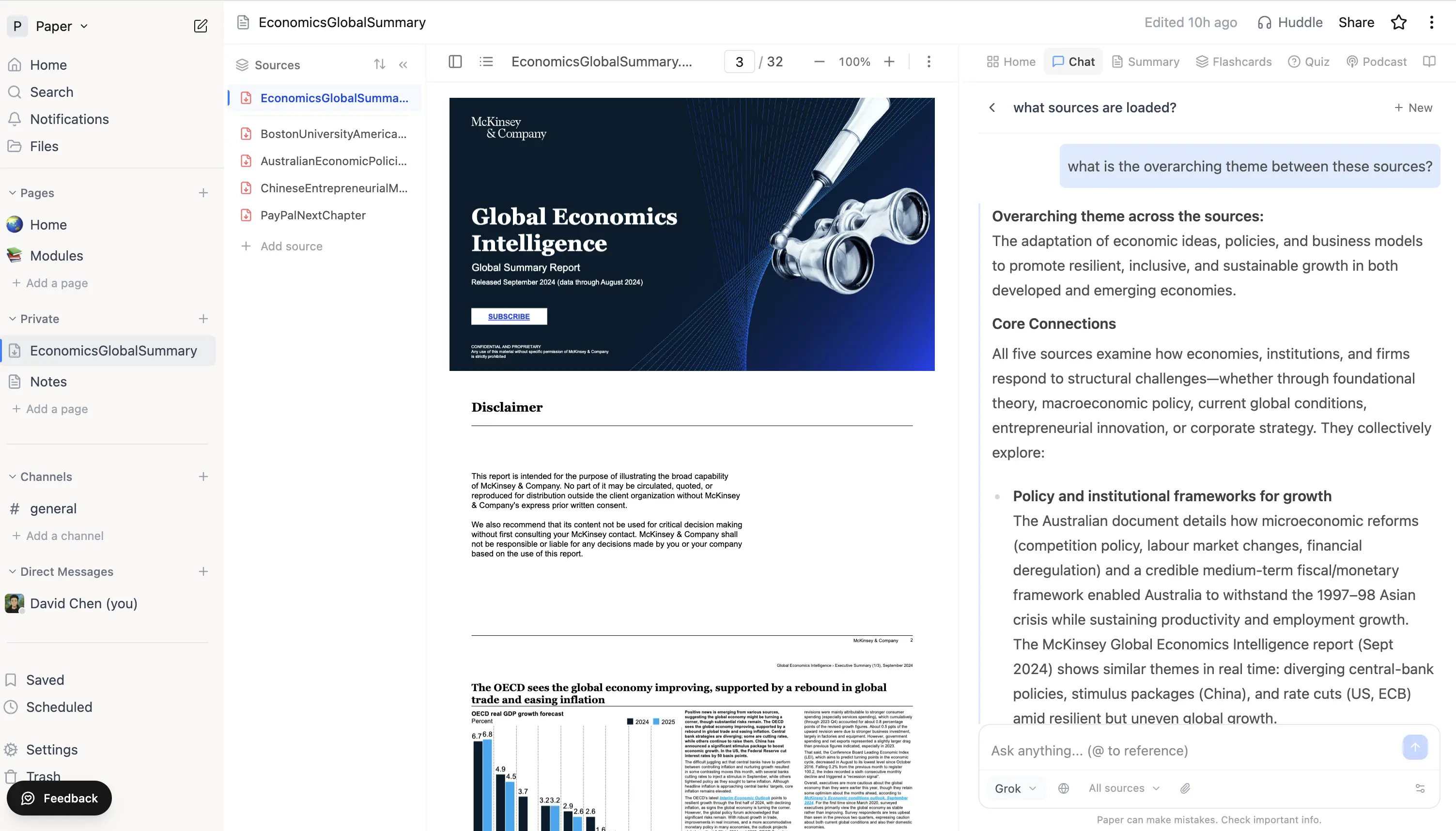 Chat panel open inside a page, with the AI Features panel on the right and a streaming answer that cites the source.
Example questions that work well
- "Summarise the key arguments in this source."
- "What does the textbook say about [concept]?"
- "Compare how source A and source B treat [topic]."
- "Quote the passage where [author] discusses [idea]."
Choosing which sources to chat with
By default, chat looks across every source attached to the page. If the page has more than one source, a small chip above the input shows All sources - click it to open the picker and tick just the sources you want chat to use. The selection sticks until you change it.
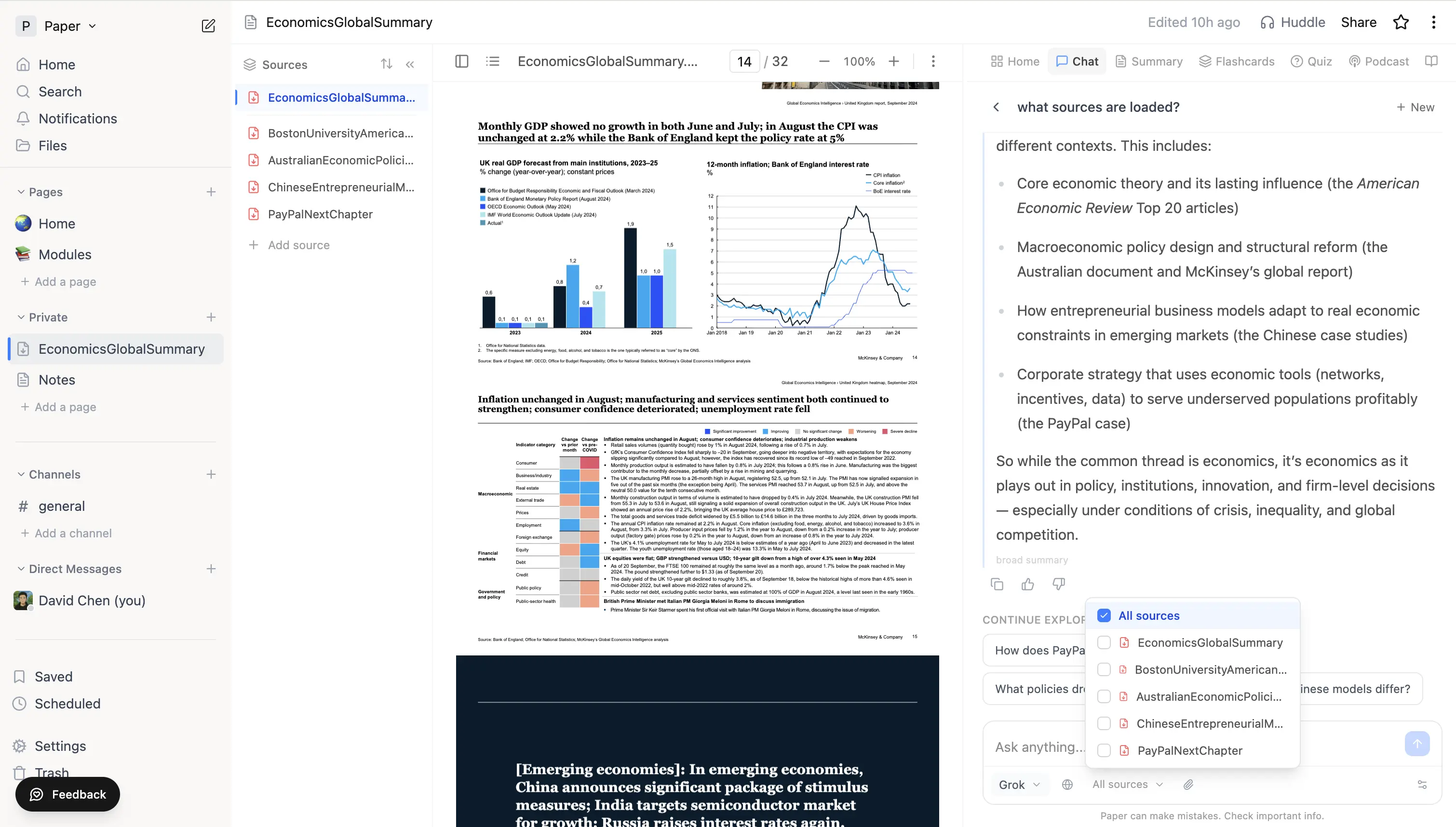 Source scope picker open, showing each loaded source with a checkbox so chat can be narrowed to a subset.
Configuring how chat responds
The gear icon (⚙) to the right of the input opens Configure chat. You can tune four things:
- Role - Default (balanced study partner), Learning Guide (defines terms, asks check-in questions), or Custom (write your own instructions, up to 500 chars).
- Response length - Default, Shorter, or Longer.
- Apply to - save just for this page (This document) or for chat everywhere (All chats).
New messages follow the settings until you change them. Changes apply mid-conversation; you don't have to start a new chat.
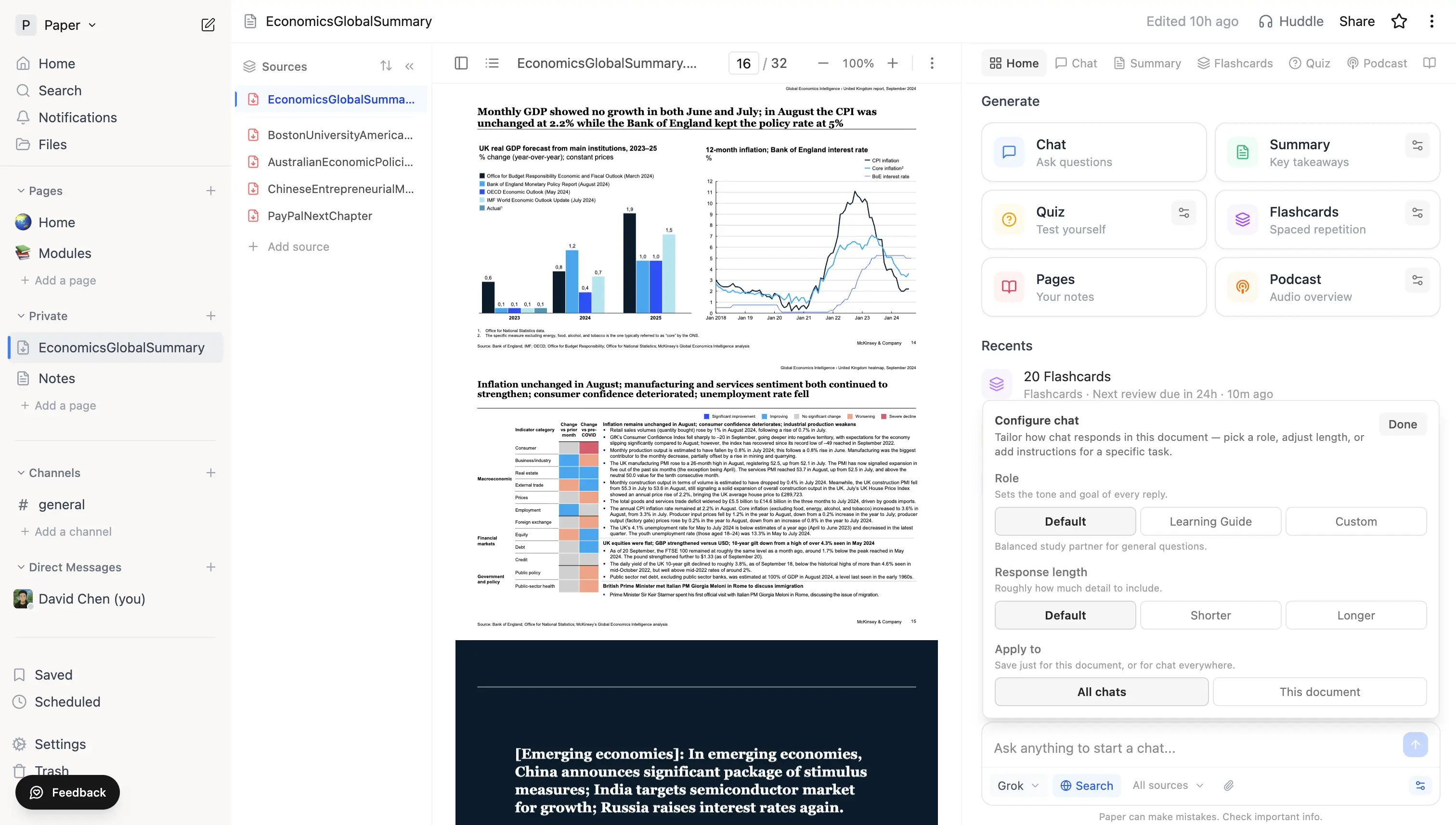 Configure chat popover with Role, Response length, and Apply-to controls.
Tips
- For long PDFs, ask about a specific section - "summarise chapter 3" - rather than the whole document at once. Asking by page number ("explain page 12" or "pages 100-105") jumps straight to that span.
- Wrap a phrase in
"quotes"to find its exact location in a PDF - chat will tell you which page it appears on. - If an answer feels generic, ask chat to "quote the relevant passage"; it will point you to the actual source text.
- Citations are clickable on every device, including the public-share view.