Properties are custom fields you attach to pages inside a Board block. They turn a list of pages into a database - so you can sort by due date, group by subject, or split your work into status columns.
Add a property
- Open a Board block, or insert one with
/board. - Click + Add property in the board header (or in any card's properties area).
- Pick a type:
- Text - free-form
- Number - for marks or counts
- Select - pick one option from a coloured list
- Multi-select - pick several options
- Date - single date or range
- Due Date - with status badges (overdue, today, soon)
- Person - pick a workspace member
- Name the property. It appears on every card in the board and in each card's page header.
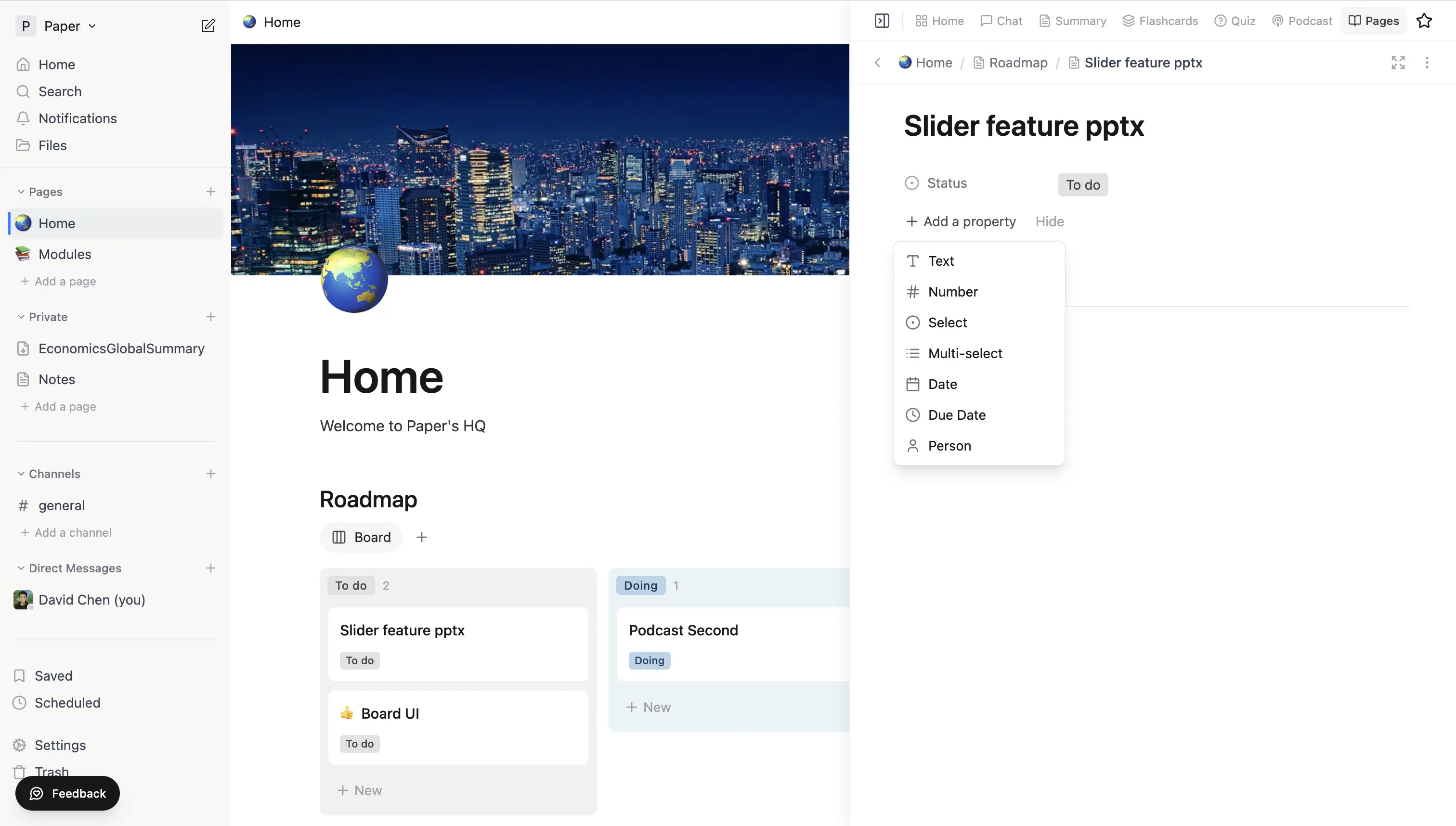 Add property menu open on a page header, showing Text, Number, Select, Multi-select, Date, Due Date, and Person types.
Set values
Inside a card, click any property to edit it. From the parent board, select/date/person properties can be set with a single click. Number and text fields are inline-editable.
Group, sort, and lay out
Each board block has its own view controls:
- Group by - split the board into columns by any select, multi-select, or due-date property. The default grouping uses the board's columns.
- Layout - switch between board (kanban), list, table, gallery, and feed views without losing the underlying data.
- Drag a card between columns to update its grouped property.
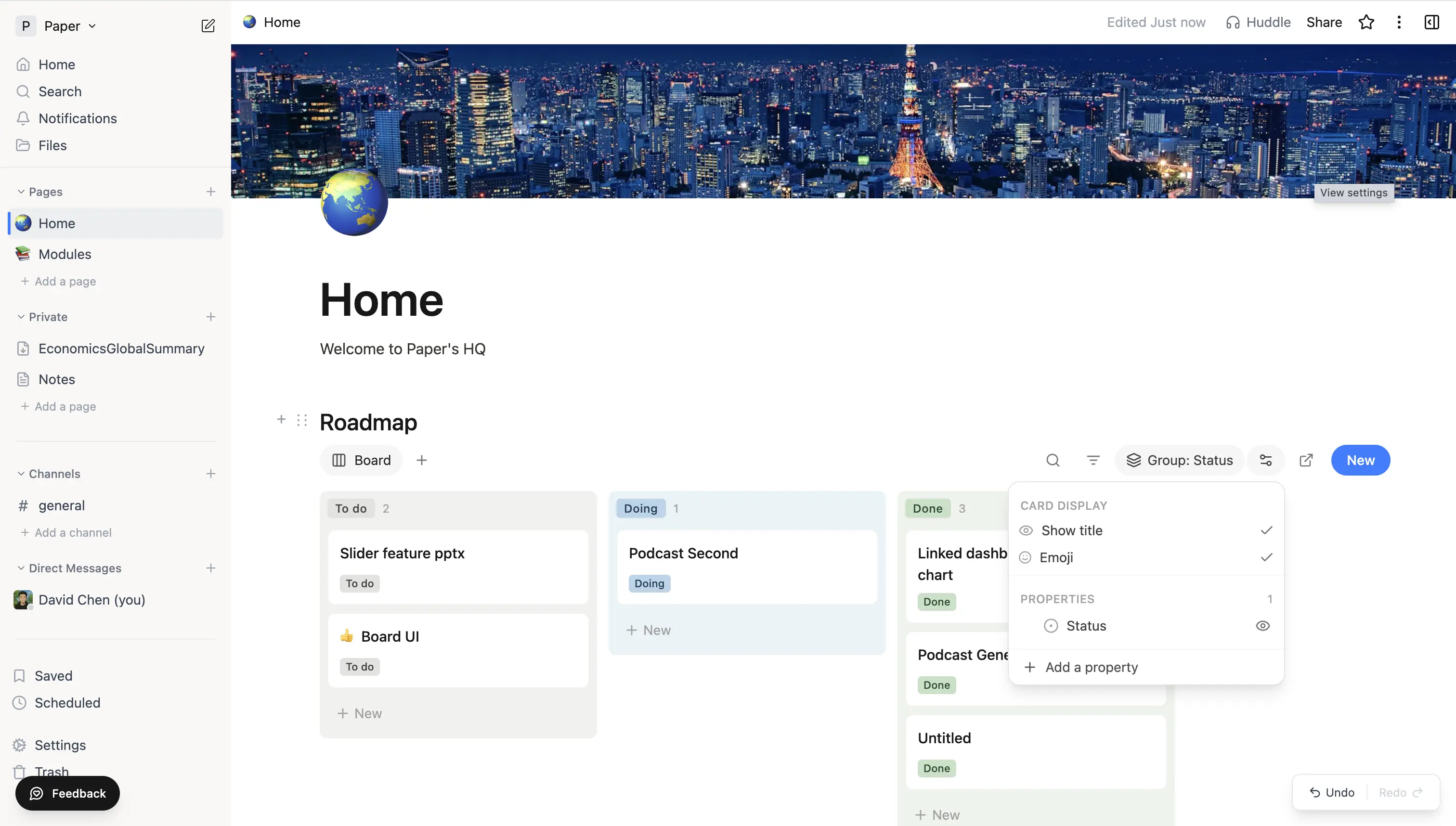 A Board block with cards grouped into To do / Doing / Done columns and the card-display settings popover open.
Tips
- For a course or essay tracker, a Select for subject and a Due Date field cover most needs.
- A Select with options Not started / In progress / Done gives you a status board out of the box.
- Multi-select is best when a single page belongs to more than one bucket - e.g. tagging readings with multiple topics.
- Property definitions live on the board, so two different boards can have independent property schemas even within the same page.