Every note in Paper keeps a version history and supports inline comments - useful for collaborative notes, peer feedback, or just leaving yourself a reminder.
Adding a comment
- Select text inside any note block.
- Click the comment icon (the speech bubble) in the floating toolbar.
- Type your comment and press enter.
The commented text is highlighted inline and the thread appears in the comments sidebar.
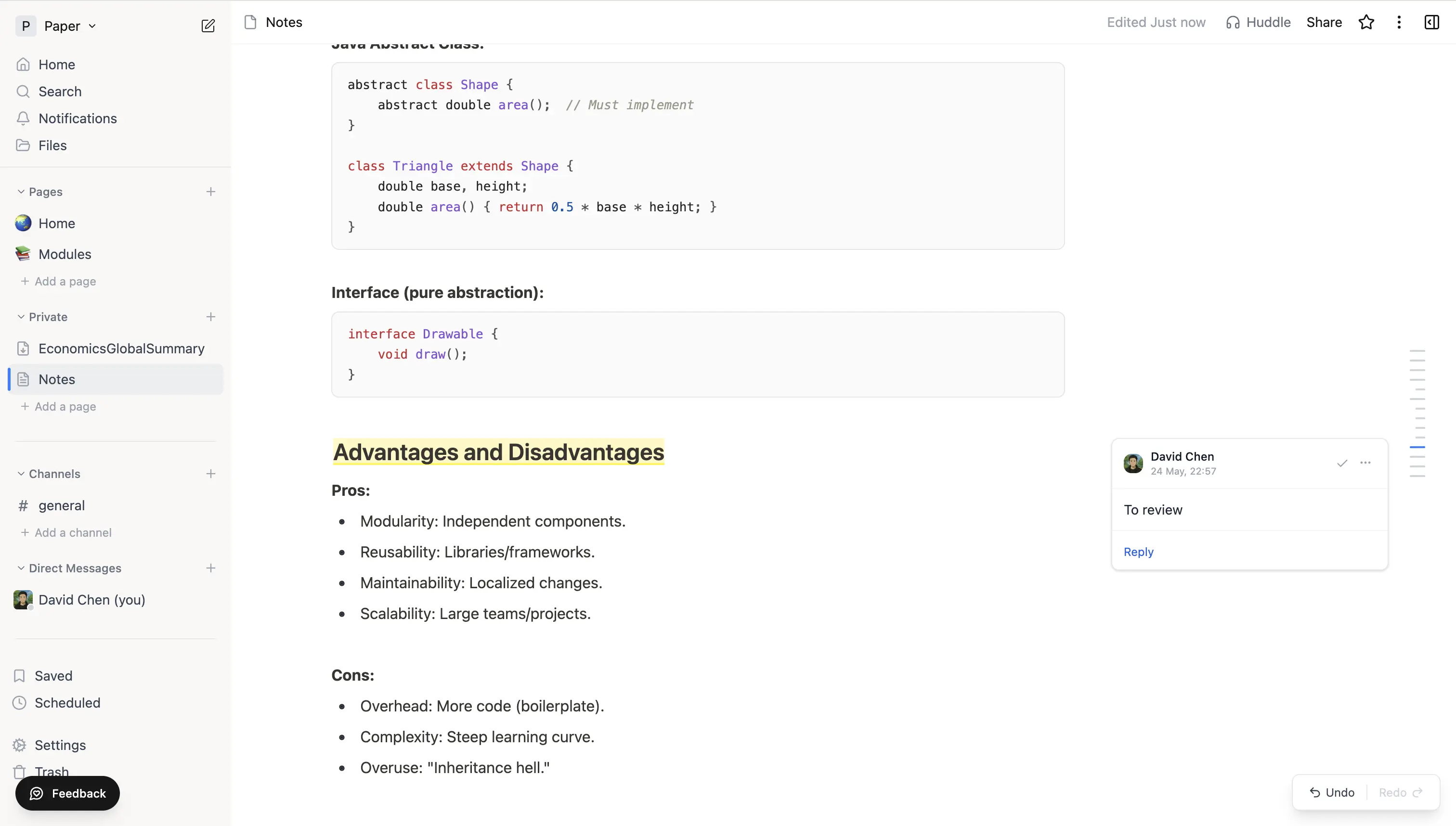 A note with a highlighted span and an inline comment thread docked on the right showing the author, timestamp, comment text, and reply field.
Replying, resolving, deleting
- Click a highlighted span (or a thread in the sidebar) to reply to the conversation.
- Click Resolve to collapse the thread once it's no longer active. Resolved comments stay accessible - toggle them back with Unresolve.
- Use the Delete button on your own comments to remove them.
Page history
Every change is captured as a version. To browse it:
- Open a note.
- Click the ⋮ menu in the page header → Page History.
- Scroll through the version list to see how the note looked at each save point.
Selecting a version shows a diff of the blocks that changed between that version and the current one - additions, deletions, edits, and moves are all flagged.
From there you can:
- Restore a previous version. Restoring doesn't erase later edits - the current state is captured as a new version first, so you can always come back.
Restore from history before assuming something was lost. Most accidental deletions are recoverable from a recent version.
Versions on AI-generated content
Summaries, study guides, chapters, and quizzes are saved alongside the note. Regenerating any of them keeps the previous output, accessible through the same history view.
Tips
- Use comments for "things to revisit later" - they're easier to find again than a TODO buried in your notes.
- Comments imported from a Notion page (via the API importer) come across as page-level comments rather than inline highlights.