Summaries turn long sources into navigable outlines. They're not single paragraphs; they're structured so you can drill into the bits that matter.
Generate a summary
- Open a page.
- In the AI Features panel, click the gear icon on the Summary tile to open settings (or click the tile to use defaults).
- Pick the sources to include - by default, every source attached to the page is selected. Untick any you want to skip.
- Pick a length:
- Brief (~300 words) - overview
- Standard (~600 words) - study notes
- Detailed (~1,200 words) - chapter-by-chapter
- Custom - type any word count between 50 and 3,000
- Click Generate. You can keep working in the page while it runs.
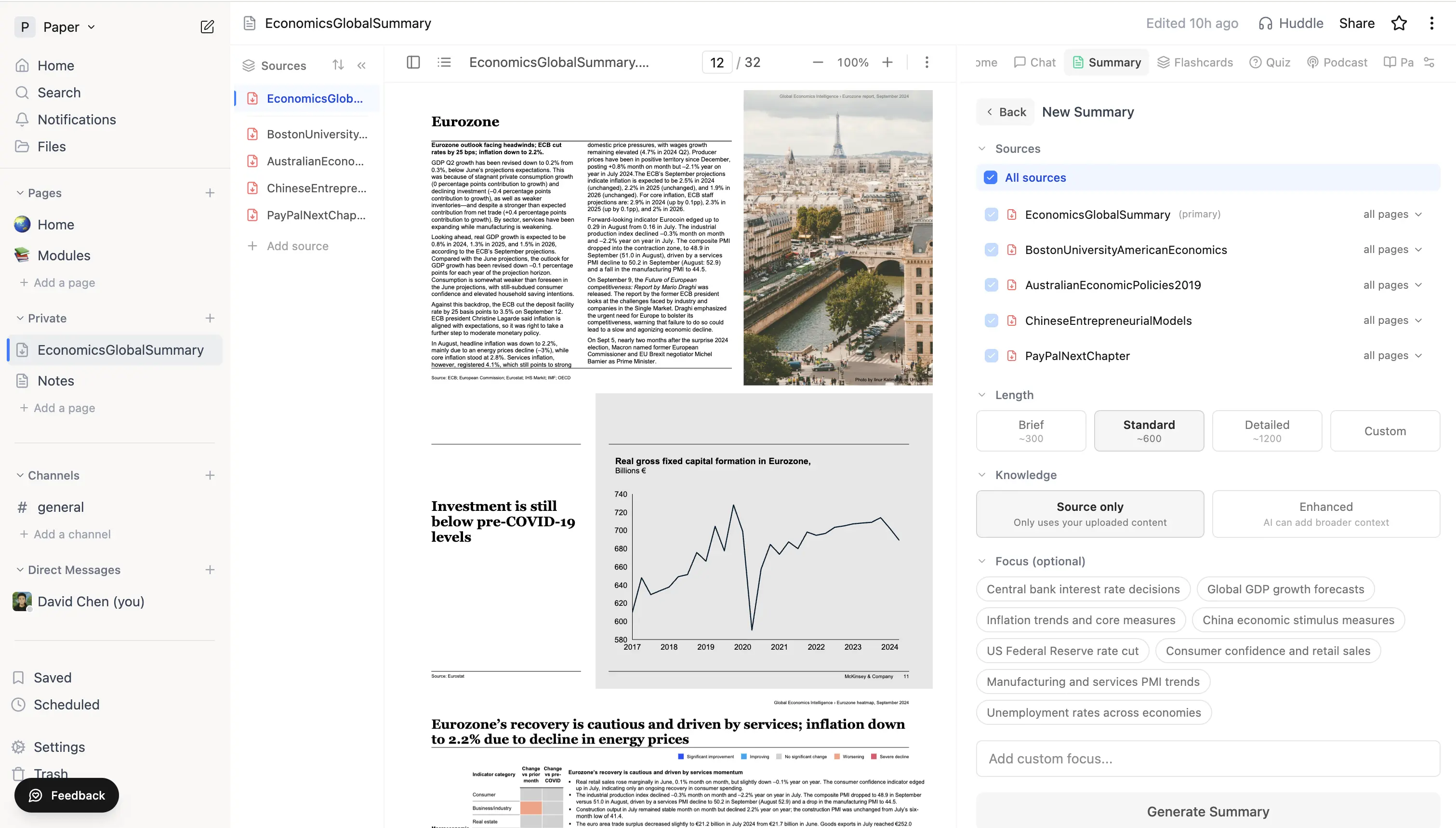 Summary settings panel with the source list (each row tickable with its own range editor), Length presets, and Focus chips.
Narrowing to part of a source
Each source in the settings panel has a range editor. For a PDF you can specify start/end pages; for a video, a start/end timestamp. Set a range once and use Apply ranges to all to push the same scoping to every selected source.
Multi-source summaries
If the page has several sources (e.g. all the readings for one essay), leaving All sources selected produces a single summary that draws on every source you've ticked - useful for revision when you want one document instead of one per source.
Regenerating and editing
Once generated, the summary opens as an editable note. You can:
- Edit text directly in the block editor
- Click Regenerate to redraft with the same settings, or open settings to change length/scope first
- Rename the generation from the header pencil icon
Past generations stay listed in the Summary tile so you can flip between them or delete the ones you don't need.
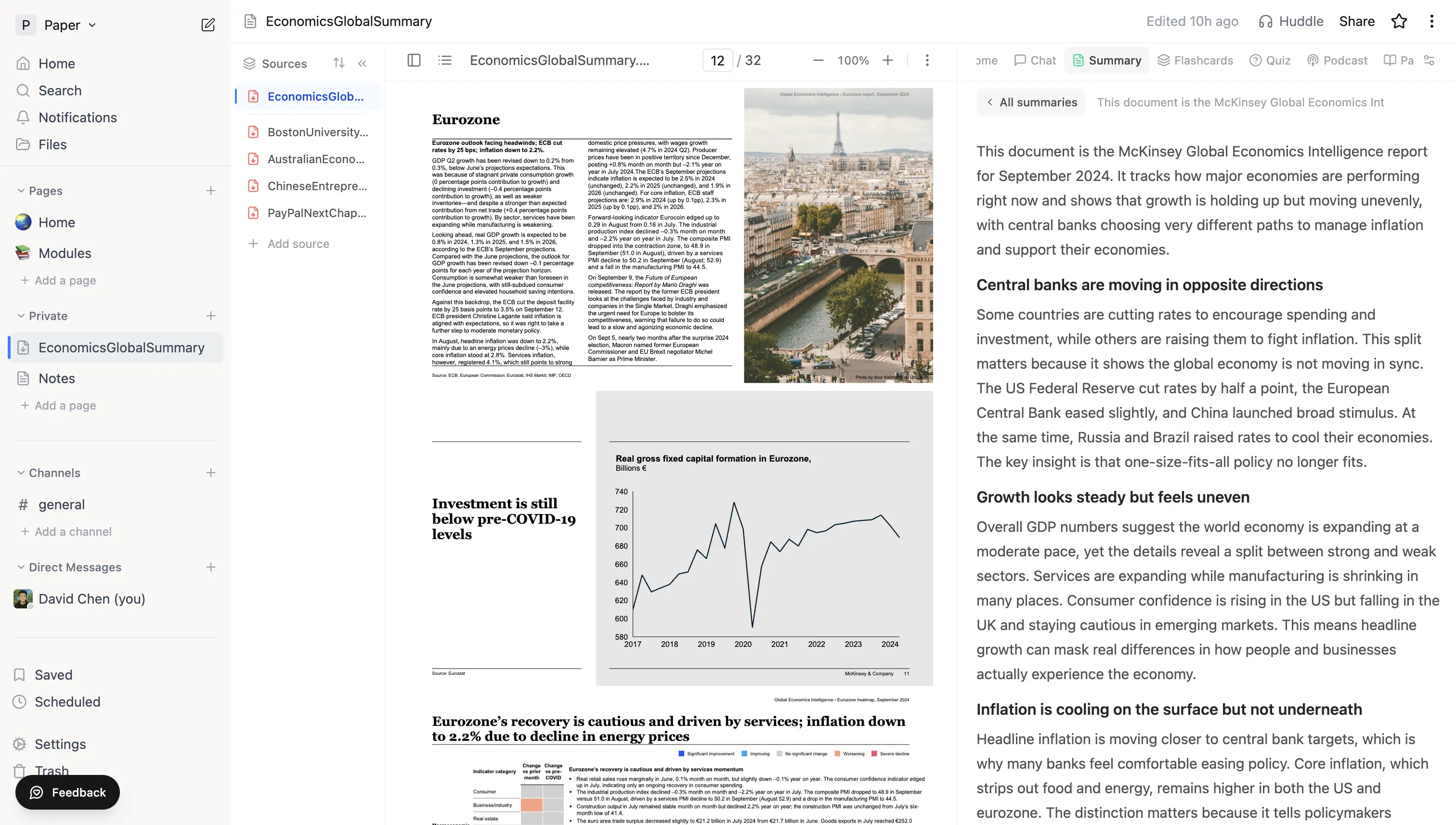 A generated summary opened in the side panel with section headings - Central banks, Growth, Inflation.
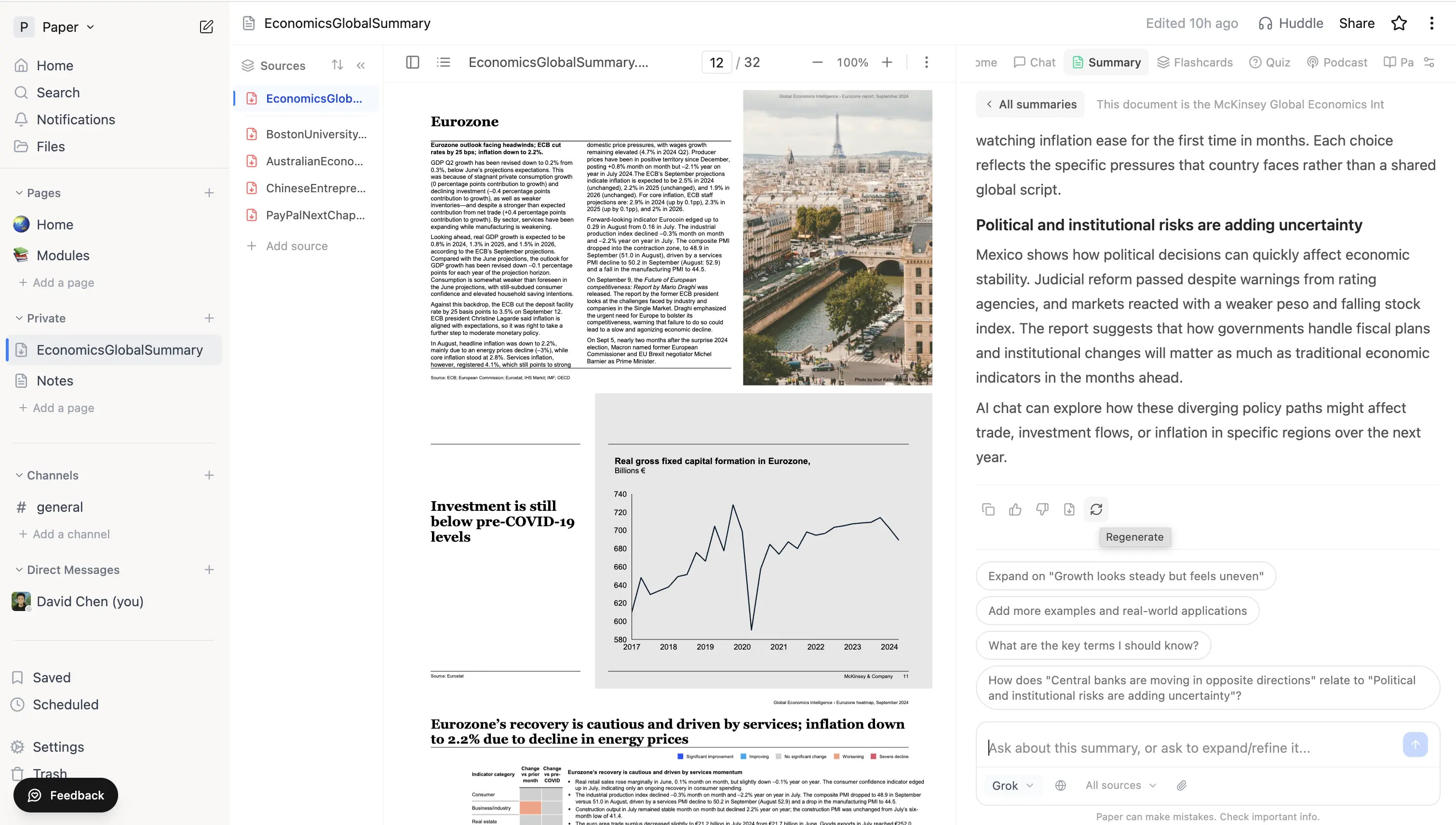 Regenerate menu below a finished summary with suggested next-question chips.
Tips
- For a long PDF, generate a Brief summary first to see the structure, then drop into a Detailed one for the chapters you want to study closely.
- A Custom length over 3,000 words isn't allowed - use Chat for longer responses instead.
- Summaries share the same source index as chat, so cleaning up a transcript or removing an irrelevant source improves the summary too.