Any Board block can be flipped into a Timeline view - a Gantt chart that draws each task as a bar across a date axis. You can drag bars to reschedule, link tasks together with dependencies, and highlight the critical path to see which work is actually driving the deadline.
Open the timeline
- Insert a board with
/board, or open an existing one. - In the board header, switch the Layout to Timeline.
- Pick which date field drives the bars. The timeline uses any Date or Due Date property on the board's cards - select the right one from the layout controls if you have more than one.
Cards that don't have a value for the chosen date field are excluded from the chart - they reappear as soon as you set a date.
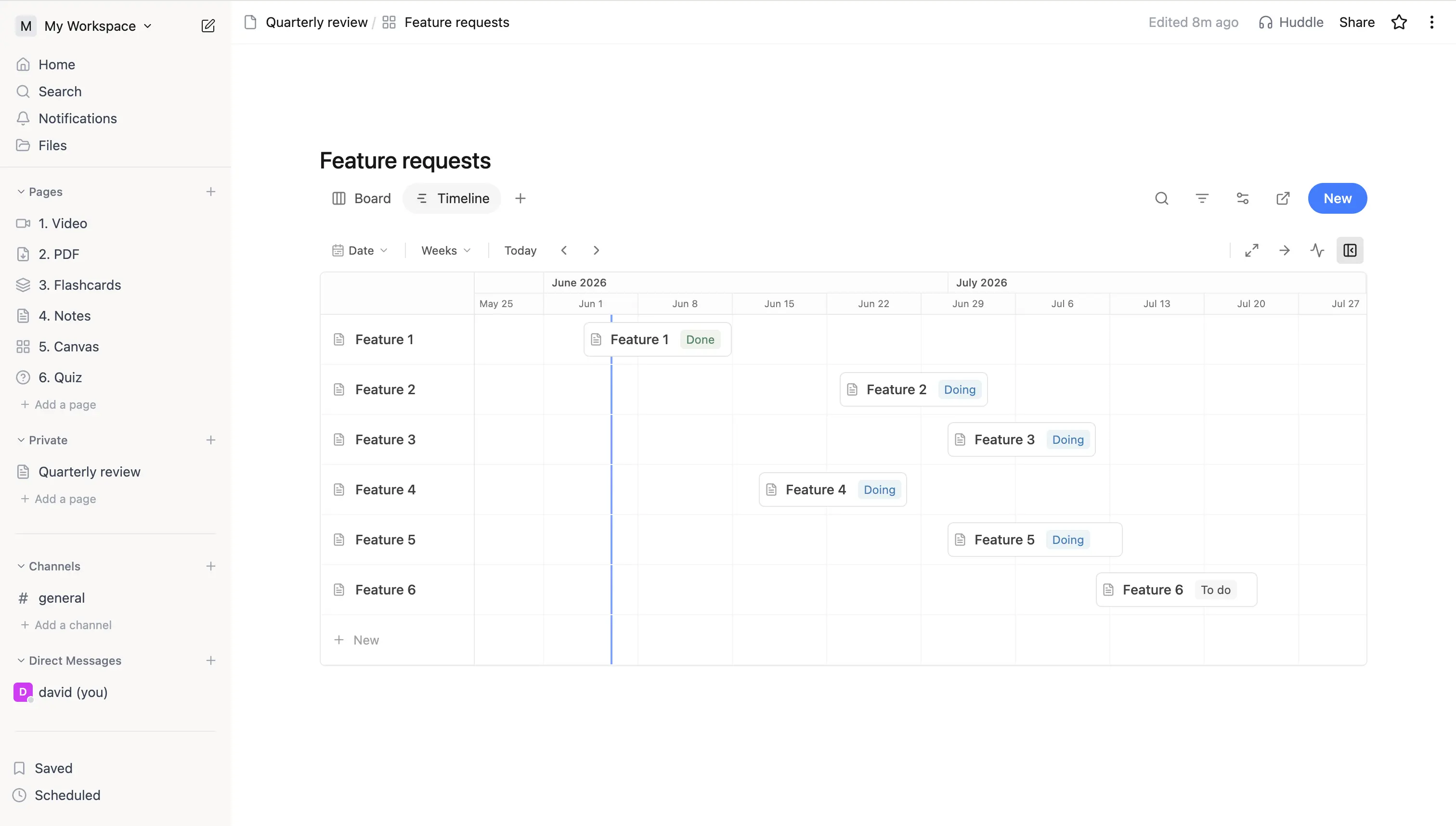 A board switched to Timeline view showing several task bars laid out across a multi-week date axis on the Weeks zoom level.
Drag, zoom, and reschedule
- Drag a bar horizontally to move the whole task. Both the start and end shift together.
- Drag a bar vertically to reorder rows - drop it above or below another row to change its position in the list.
- Drag either edge of a bar to resize - extending or shortening the task in place.
- Zoom between Hours / Days / Weeks / Months / Quarters from the timeline header.
- Expand to full width breaks the timeline out past the page column when you need more room; Shrink to column width snaps it back inline with the rest of the page.
Date changes write straight back to the underlying date property, so any other view (board, list, table) updates in lockstep.
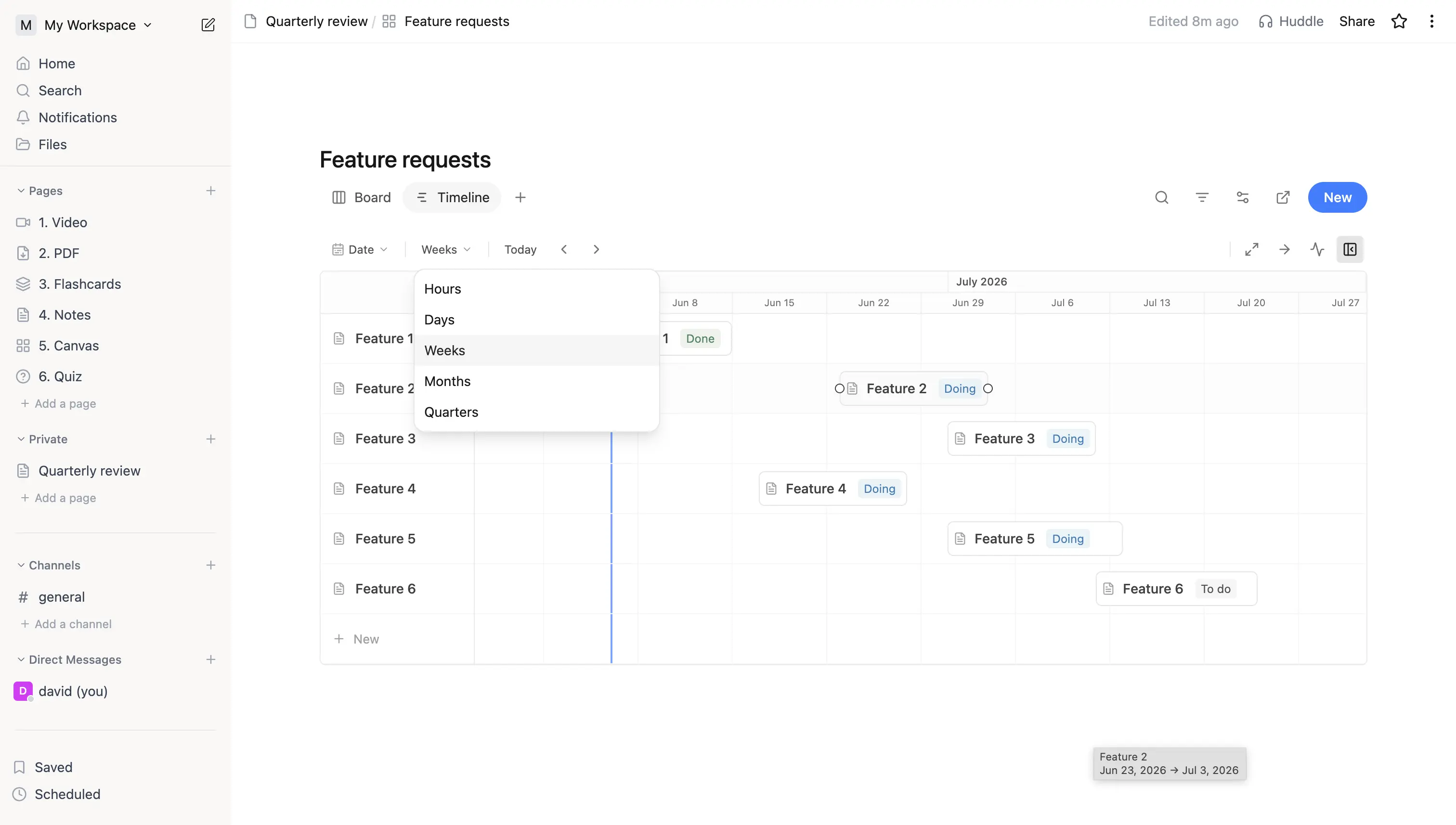 A timeline bar hovered to reveal its drag affordances, with the zoom picker open showing Hours / Days / Weeks / Months / Quarters.
Dependencies
A dependency says one task can't start (or finish) until another reaches a certain point. There are two ways to add one.
From the card
Open a card and use the Blocked by picker:
- Click + Add dependency.
- Pick the predecessor task from the typeahead - it lists every other card on the same board.
- Choose a dependency type (see below). Most people only ever need the default.
- The new dependency appears as a chip with a small coloured badge for its type. Click the × on the chip to remove it.
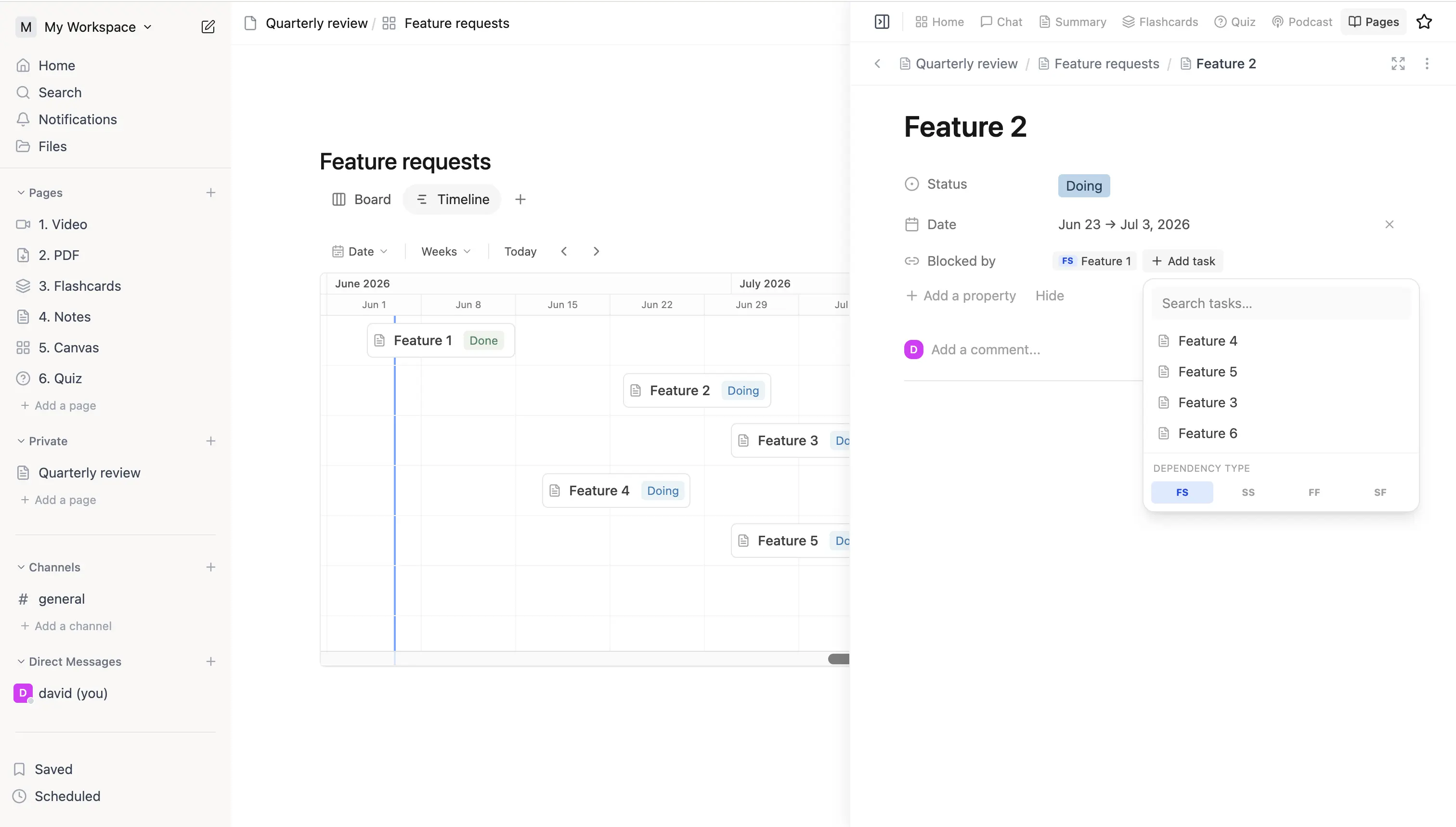 A card's Blocked by section showing an existing dependency chip with its FS badge and the Add dependency typeahead open over sibling cards.
By dragging on the timeline
Hover a bar to reveal the two small handles - one at the start edge, one at the end. Click and drag from a handle to another bar; drop on the half of the target bar that matches the relationship you want. The dependency type is inferred from where you started and where you dropped:
| Drag from | Drop on | Creates |
|---|---|---|
| End of A | Start of B | Finish → Start (A must finish before B starts) |
| Start of A | Start of B | Start → Start (A must start before B starts) |
| End of A | End of B | Finish → Finish (A must finish before B finishes) |
| Start of A | End of B | Start → Finish (A must start before B finishes) |
Press Esc or drop outside a bar to cancel.
Dependency types
- Finish → Start (FS) - the default; the most common relationship.
- Start → Start (SS) - two tasks kick off together.
- Finish → Finish (FF) - two tasks must wrap together.
- Start → Finish (SF) - rarely needed; covers hand-off scenarios.
Arrow colours
Every dependency renders as an arrow on the timeline between the two bars:
- Grey - a normal dependency that's currently satisfied.
- Red - a violation: the actual dates don't satisfy the constraint (for example, the predecessor of a Finish → Start link ends after its successor starts). Dates are not auto-shifted; the red arrow just flags that something is out of sync so you can fix it deliberately.
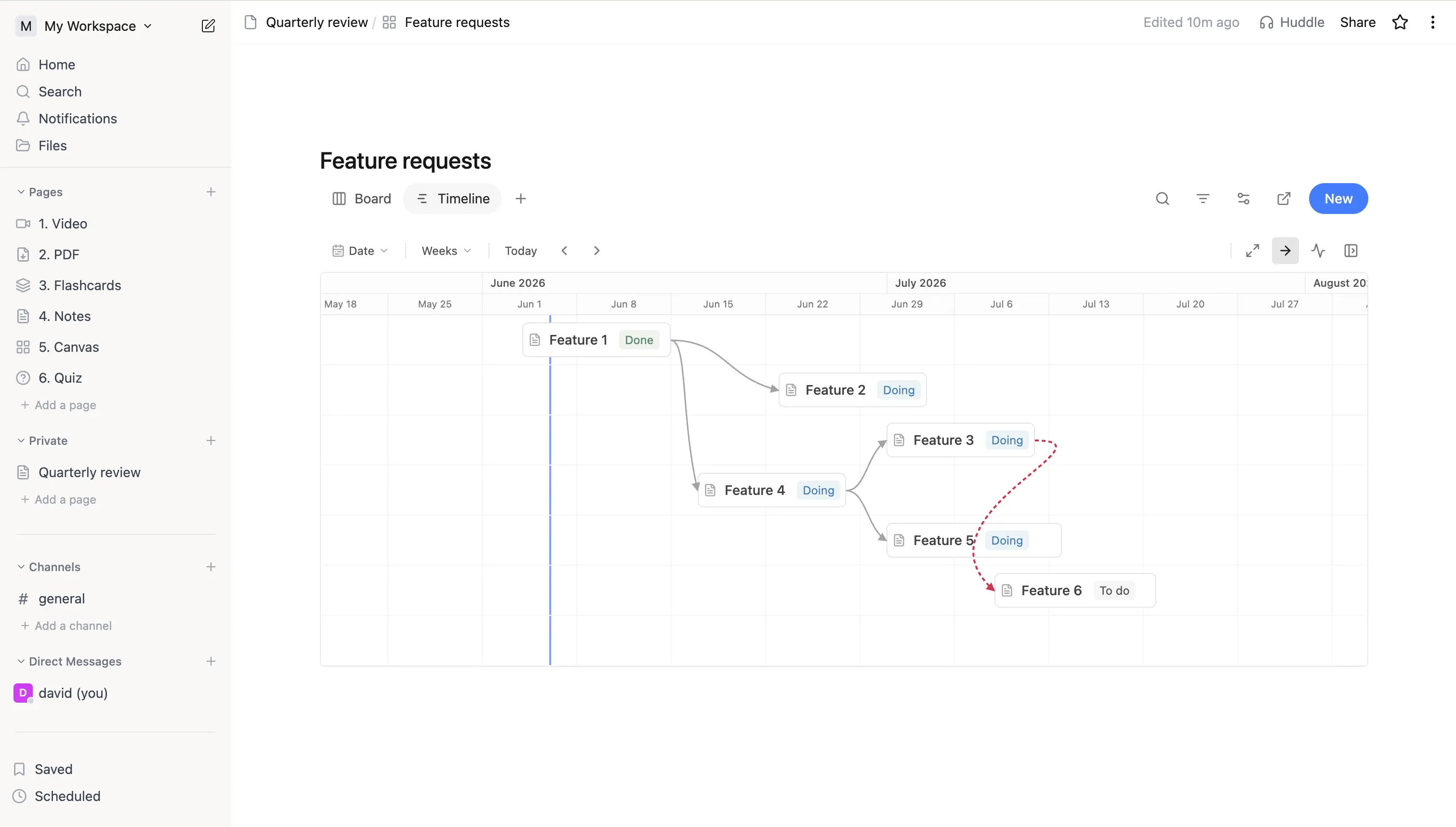 A timeline showing several bars connected by dependency arrows, including one red arrow flagging a Finish to Start violation.
Hide the arrows
Busy timelines can get noisy when every task is wired up. Toggle Hide arrows in the timeline header to suppress the arrow overlay - the dependencies themselves stay in place, you just can't see them. Toggle it back on whenever you want to inspect the wiring.
Cycles are blocked
You can't create a loop - if a dependency would mean a task ends up depending on itself (directly or through a chain), it's rejected.
Critical path
The critical path is the longest chain of dependent tasks - the sequence that actually determines the board's end date. Anything off the critical path has slack: it can slip a little without pushing the overall deadline.
Toggle Show critical path from the timeline header. When it's on:
- Bars on the critical chain are styled darker.
- Arrows on the critical chain are thicker.
- Bars and arrows that aren't on the critical chain stay neutral.
Turn it on when you want to focus on what's actually driving the schedule.
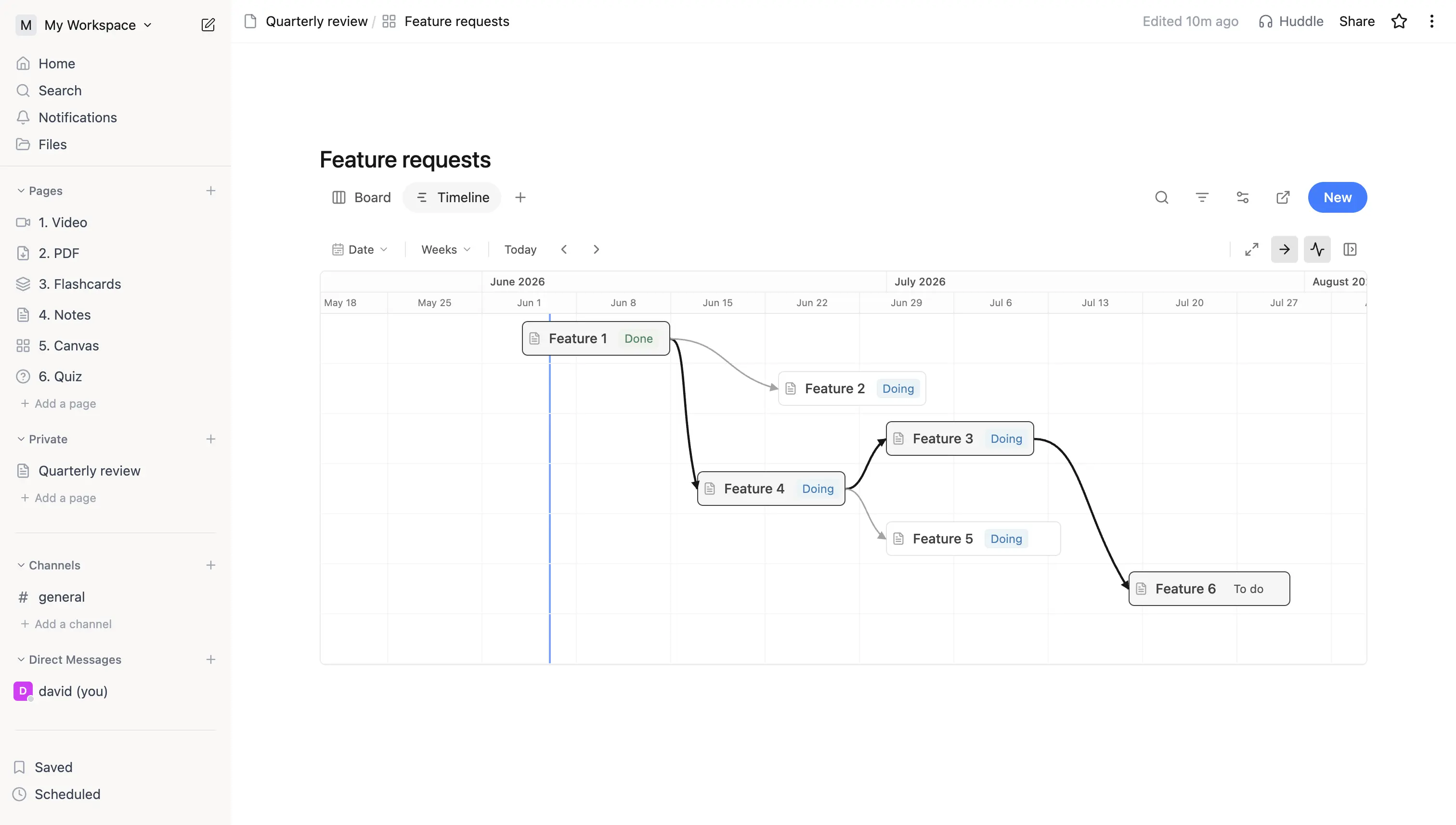 A timeline with Show critical path toggled on, the longest dependency chain drawn in darker bars and thicker arrows while non-critical bars stay neutral.
Tips
- For a course schedule, set a Due Date property on each task and switch the board to Timeline view - you get a Gantt without configuring anything else.
- Tasks without dates don't render on the timeline. That's a useful way to "park" a card while you decide when to schedule it.
- The critical path follows the longest dependent chain - rescheduling can change which chain is critical.