Notes in Paper are written in a block editor. Each paragraph, heading, list, image, or embedded source is a block you can drag, duplicate, or convert into a different type.
Adding a block
Three ways:
- Press enter at the end of a block to start a new paragraph.
- Type
/anywhere to open the slash menu, then pick a block type. - Drag a block from one location to another using its handle.
Block types
The slash menu shows everything you can insert:
- Text - plain paragraph
- Heading 1, Heading 2, Heading 3
- Bullet List
- Checkbox (to-do)
- Callout - highlighted note with an emoji
- Quote
- Page - a nested page that links into a child workspace
- Board - a kanban/database view
- Table - inline table
- Contents - auto-generated table of contents for the current note
- Video - paste a YouTube URL to embed a video block with its own transcript
- Image - upload or paste an image
- PDF - upload or link a PDF that opens inside the note
- Divider
- Accordion - collapsible block with nested children
Type to filter the menu (e.g. /h1, /quote, /callout, /page, /board).
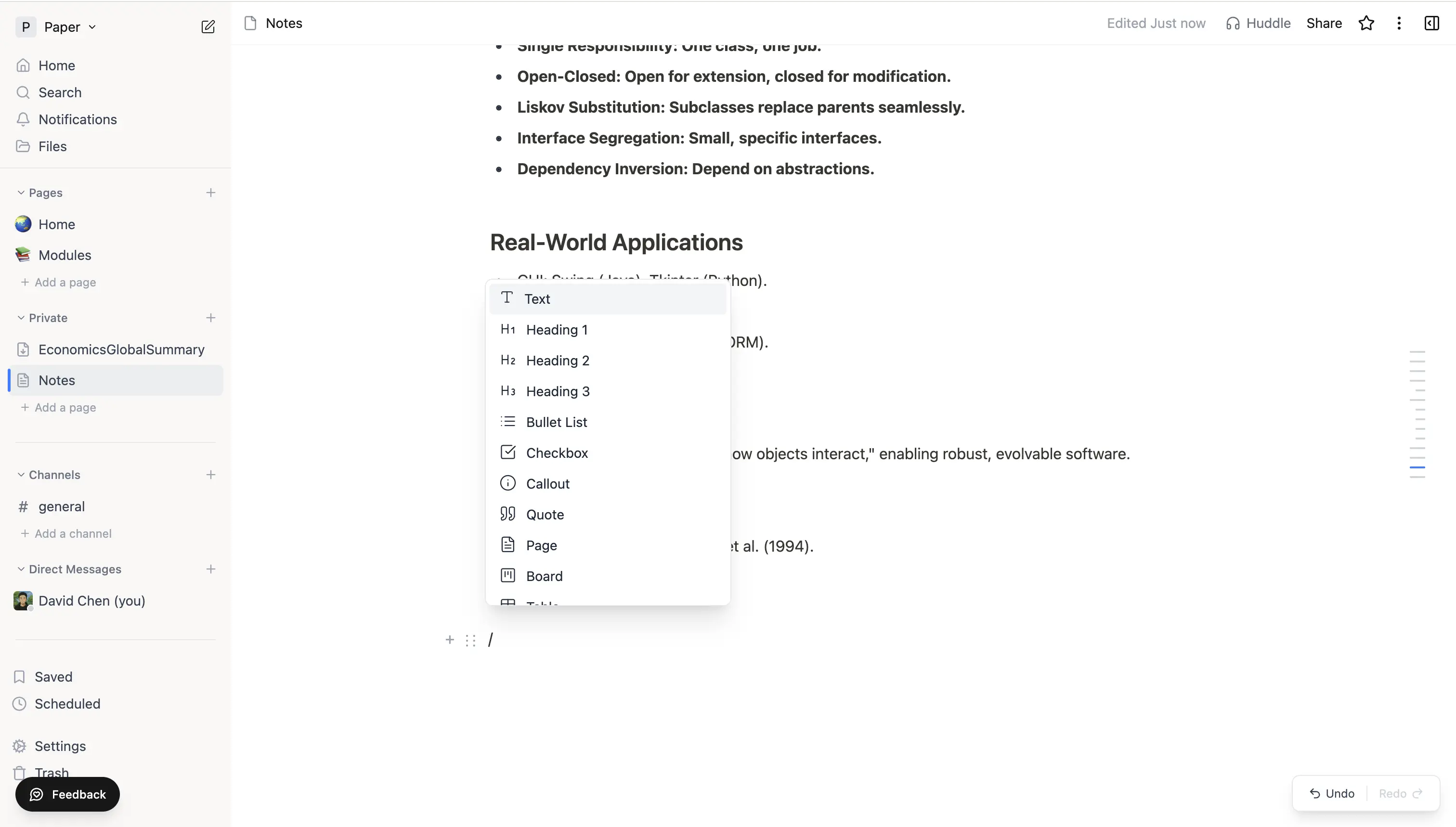 Slash menu open in a note, showing Text, Heading 1–3, Bullet List, Checkbox, Callout, Quote, Page, Board.
Moving blocks around
- Drag the handle that appears to the left of a block on hover to reorder it.
- Select multiple blocks by clicking the first and shift-clicking the last, or by dragging across them - then move them as a group.
- Drag a block out of a page and into another page in the sidebar to move it across notes.
Formatting
Selecting text opens a floating toolbar with bold, italic, strike, link, colour, and comment. You can also use the standard shortcuts:
- ⌘ / Ctrl + B - bold
- ⌘ / Ctrl + I - italic
- ⌘ / Ctrl + K - add link
- ⌘ / Ctrl + Z - undo (works across collaborators' edits too)
Embedding sources inside a note
Instead of a generic embed block, Paper uses dedicated source blocks:
- A Video block accepts any YouTube URL and shows the player plus transcript.
- A PDF block embeds a PDF inline with its own reader.
- An Image block accepts uploads or links.
- For other content (Loom, Figma, websites), add the link as a web source on the page instead, or paste it as a regular link and use the paste menu to convert it.
Live collaboration
If you share a note with someone (see Publishing & sharing), edits sync in real time. You'll see other people's cursors and selections as they type. Two people editing the same paragraph won't conflict - Paper merges the edits.